

One of the things I value about WordPress is that open source gives us more than access to the code—it gives us the freedom to understand how something works, build on it, and adapt it to different needs.
The WordPress Abilities API is a good example of that approach. It provides a shared foundation for describing what a site can do, while leaving developers free to build their own tools, integrations, and interfaces around it. That openness deserves credit: it creates room for different approaches without making everyone reinvent the same foundation.
But the freedom to extend a system also brings responsibility. In this article, we’ll look at what the Abilities API makes possible, how to explore it in WordPress, and the permission boundaries that matter when connecting it to automation or AI tools.
What the WordPress Abilities API actually does
Introduced in WordPress 6.9, the API gives operations a shared registration format. An ability has an identifier such as core/get-site-info, a description, a category, definitions for its inputs and outputs, and the implementation that performs the operation. See the official Abilities API introduction.
Think of a plugin that needs to provide a narrowly defined operation: retrieve selected site information, prepare a report, or update a particular piece of content. Registering that operation makes its contract discoverable instead of leaving every integration to invent its own description and calling convention.
It does not automatically turn every plugin function into an ability. Someone must register the operation and implement its behaviour and access controls. The abilities available on your website depend on its installed code and versions.
Abilities, REST, and MCP are different layers
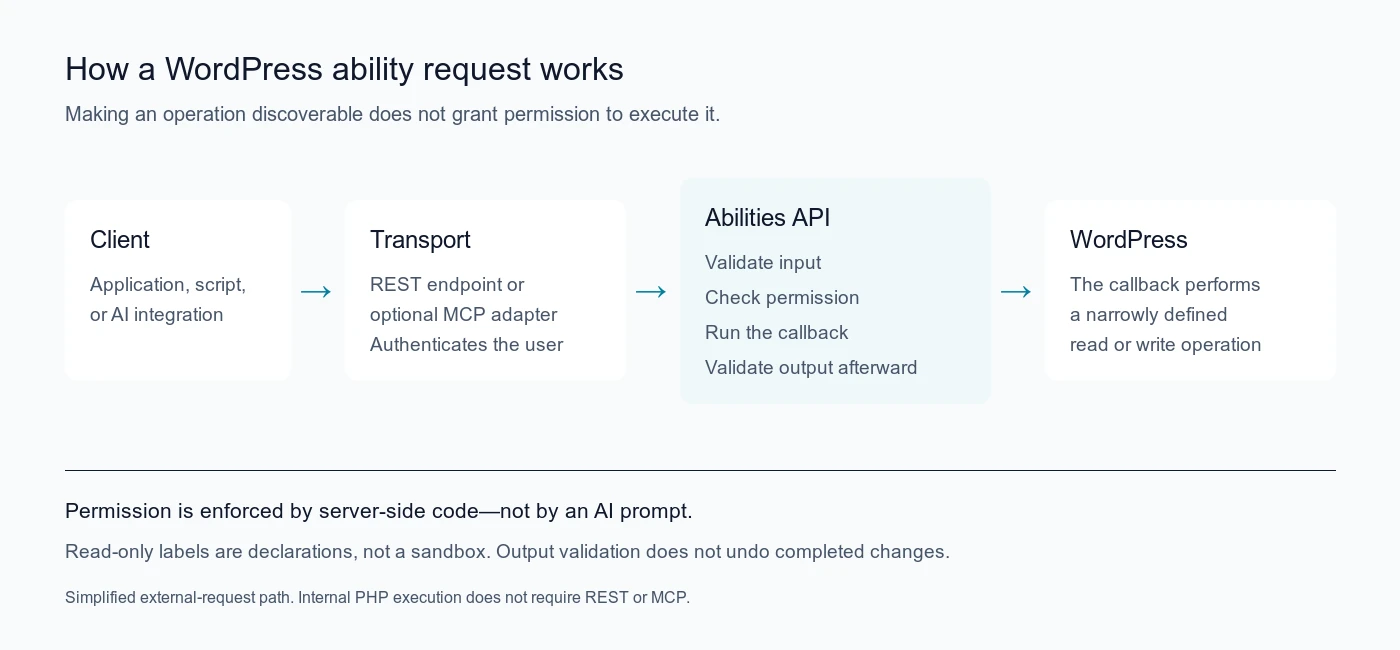
The Abilities API describes and executes operations inside WordPress. REST provides an HTTP interface for abilities that are exposed to it. An MCP adapter can bridge abilities to compatible external clients; it is a separate integration, not a requirement for internal PHP execution.
An ordinary application can use an ability without an AI model. Equally, installing an AI plugin does not mean an external assistant is already connected or authorised to operate your website. The WordPress MCP Adapter project documents that optional bridge.
For example, a maintenance tool could request a limited site-information response. A more ambitious integration could propose editorial changes. Those are different risk levels, even if both use the same underlying API.
A practical walkthrough using the official AI plugin
I tested the following workflow on a disposable installation using WordPress 7.1.3, PHP 8.5.12, and the official AI plugin 1.5.0. It contained no copied client data, had no AI provider configured, and was separate from this portfolio website. Screenshots show that test installation—not a universal WordPress settings screen.
Use a staging or disposable site first, especially when experimenting with operations that could change content. The official AI plugin includes experimental features; controls and available abilities can change between releases.
Enable only the features needed
Install and activate the official AI plugin from the WordPress plugin directory. In the tested version, open Settings → AI → Admin Experiments and enable Abilities Explorer and Custom Abilities. The individual switches save their state; this version does not use the older global enable switch.
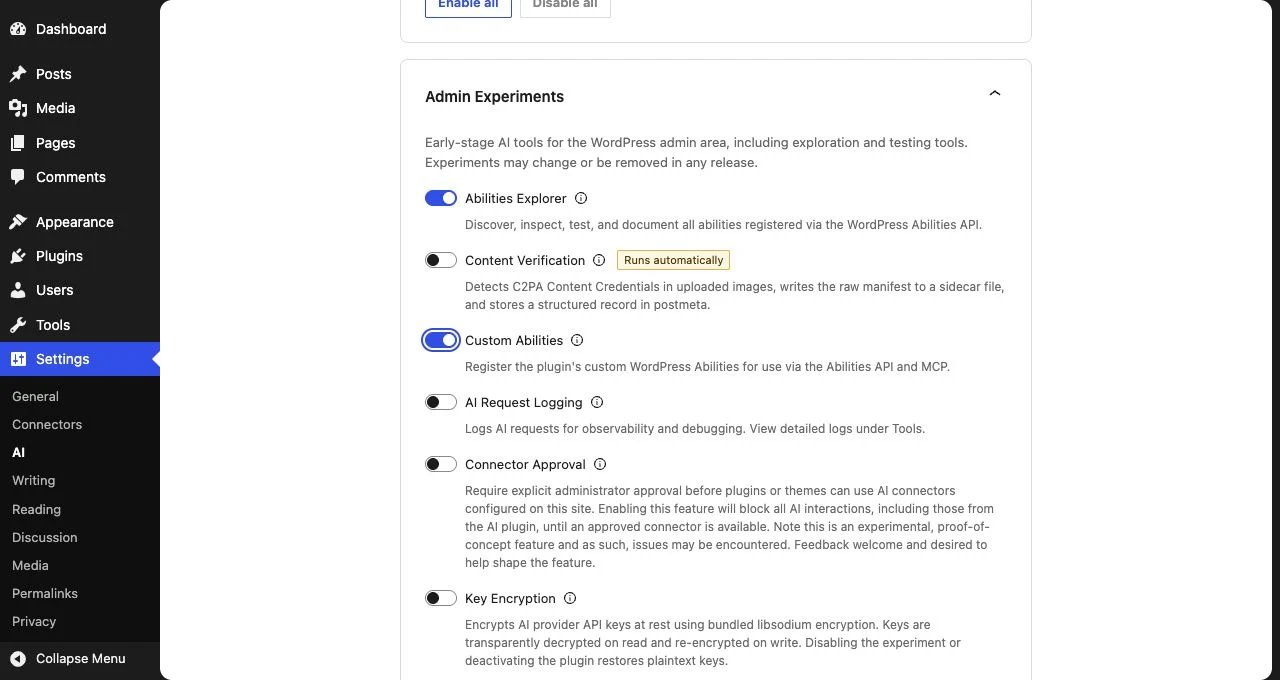
Explorer supplies the inspection interface. Custom Abilities adds operations for this demonstration. These are optional plugin features, not steps required to enable the core API itself. Leave unrelated experiments disabled while learning the workflow.
There is also no universal “enable abilities for this plugin” switch. An integration must actually register abilities, and its own documented settings determine which features it offers. Do not assume an installed commerce, forms, or SEO plugin supports abilities simply because Explorer is available.
Inspect the registered abilities
Open Tools → Abilities Explorer. On my test site, the registry contained three abilities before Custom Abilities was enabled and eight afterward. Your list may differ.
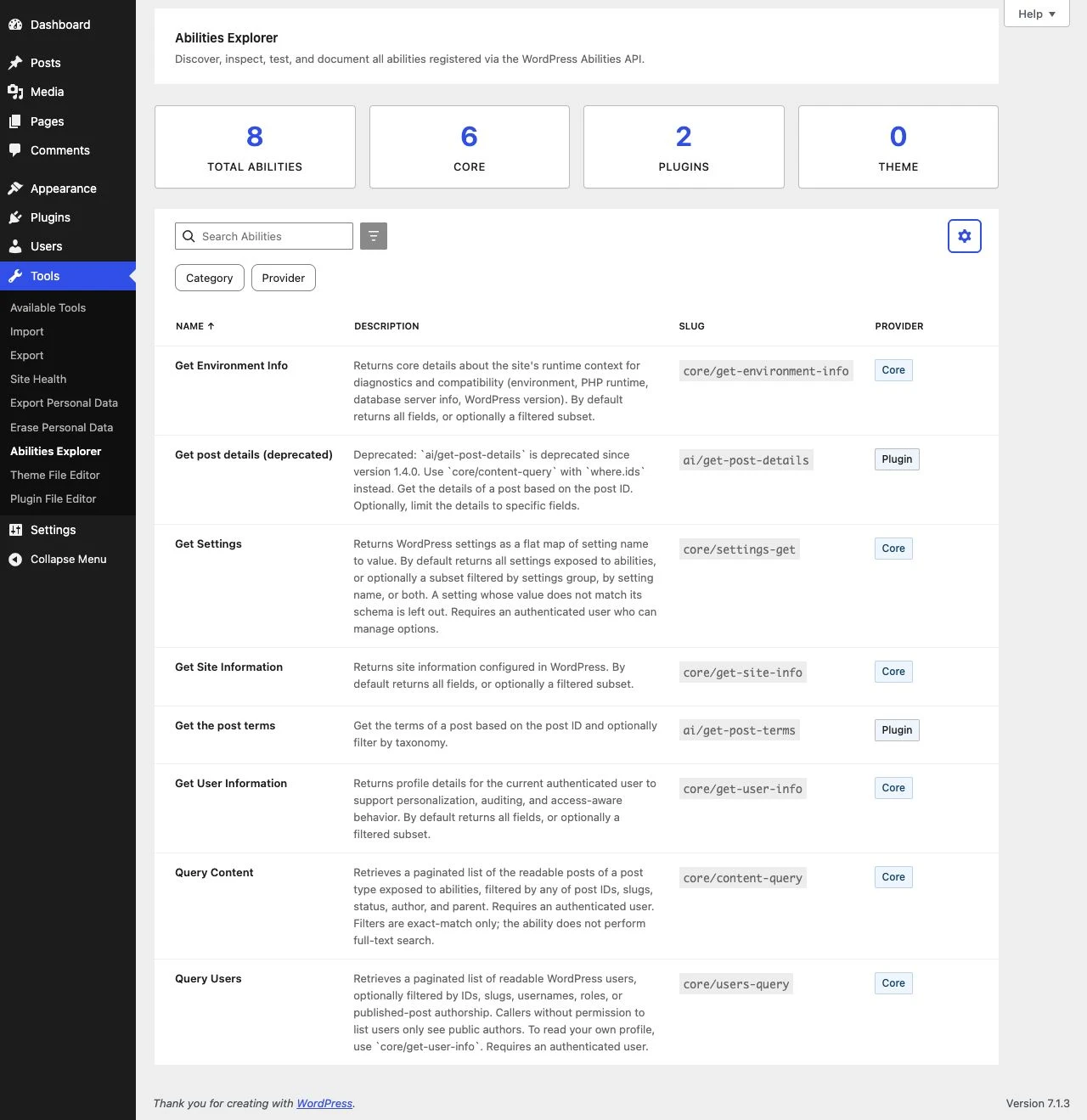
Choose core/get-site-info and read its details before running it. Pay attention to what information it accepts and returns. Explorer’s provider labels are useful navigation aids, but namespace-based grouping is not definitive proof of which component registered an operation.
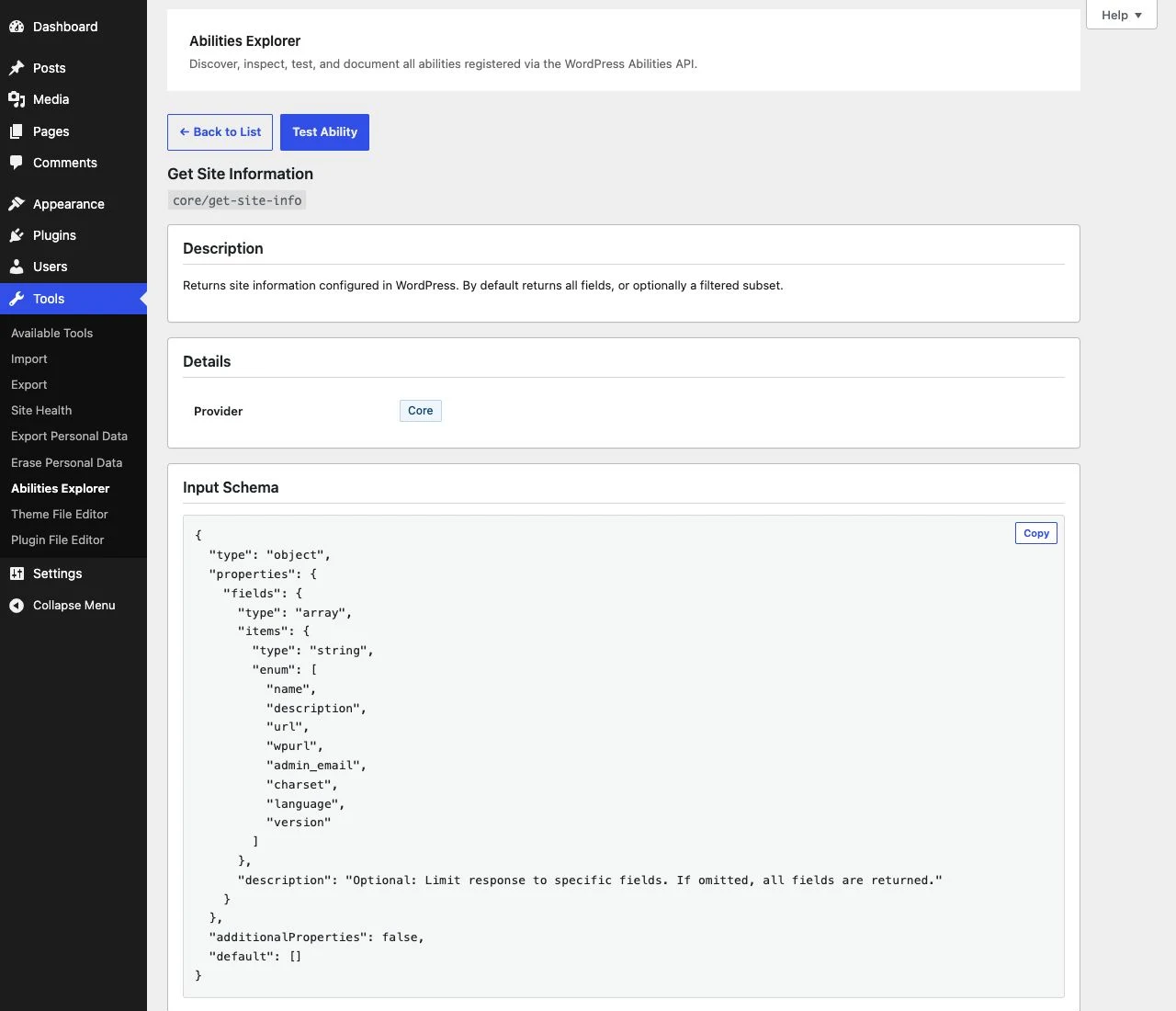
The input schema helps you construct a valid request. It is not a substitute for understanding the operation: a request can be structurally valid and still be inappropriate for the user, record, or business process involved.
Run a small, read-only request
In the ability tester, request only the fields needed for this example:
{"fields":["name","url","version"]}The test site returned its name, local address, and installed WordPress version. This example did not require an AI provider, an Application Password, or an external MCP connection.
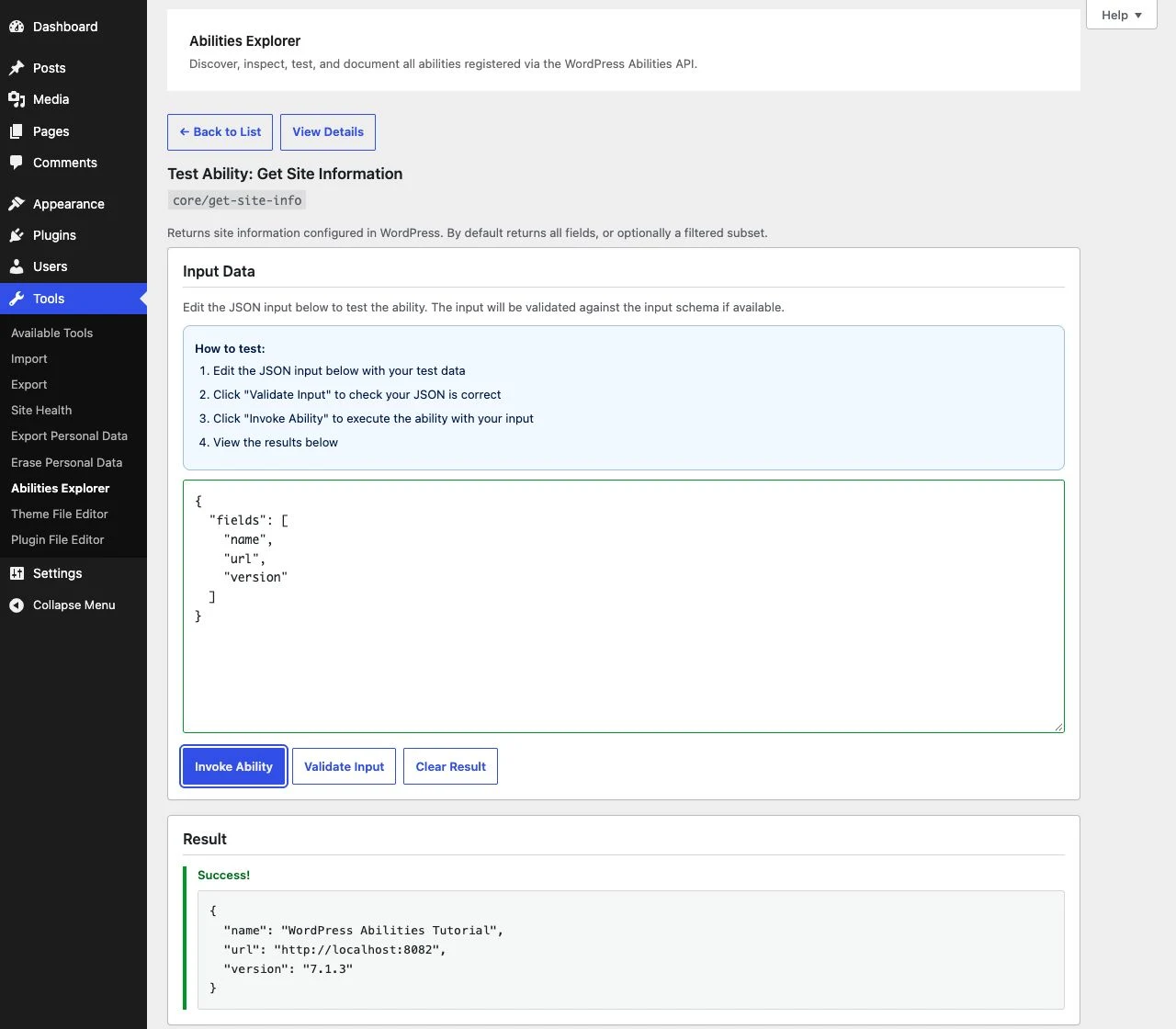
Start here rather than testing a bulk update. A limited read lets you understand the request and response without introducing a content-changing workflow. Read-only does not mean harmless in every context, however: other operations may return private information.
Check an invalid request as well
Replace the requested field with a value that the schema does not allow:
{"fields":["not-a-real-field"]}The tested ability rejected the input rather than treating it as a valid field selection.
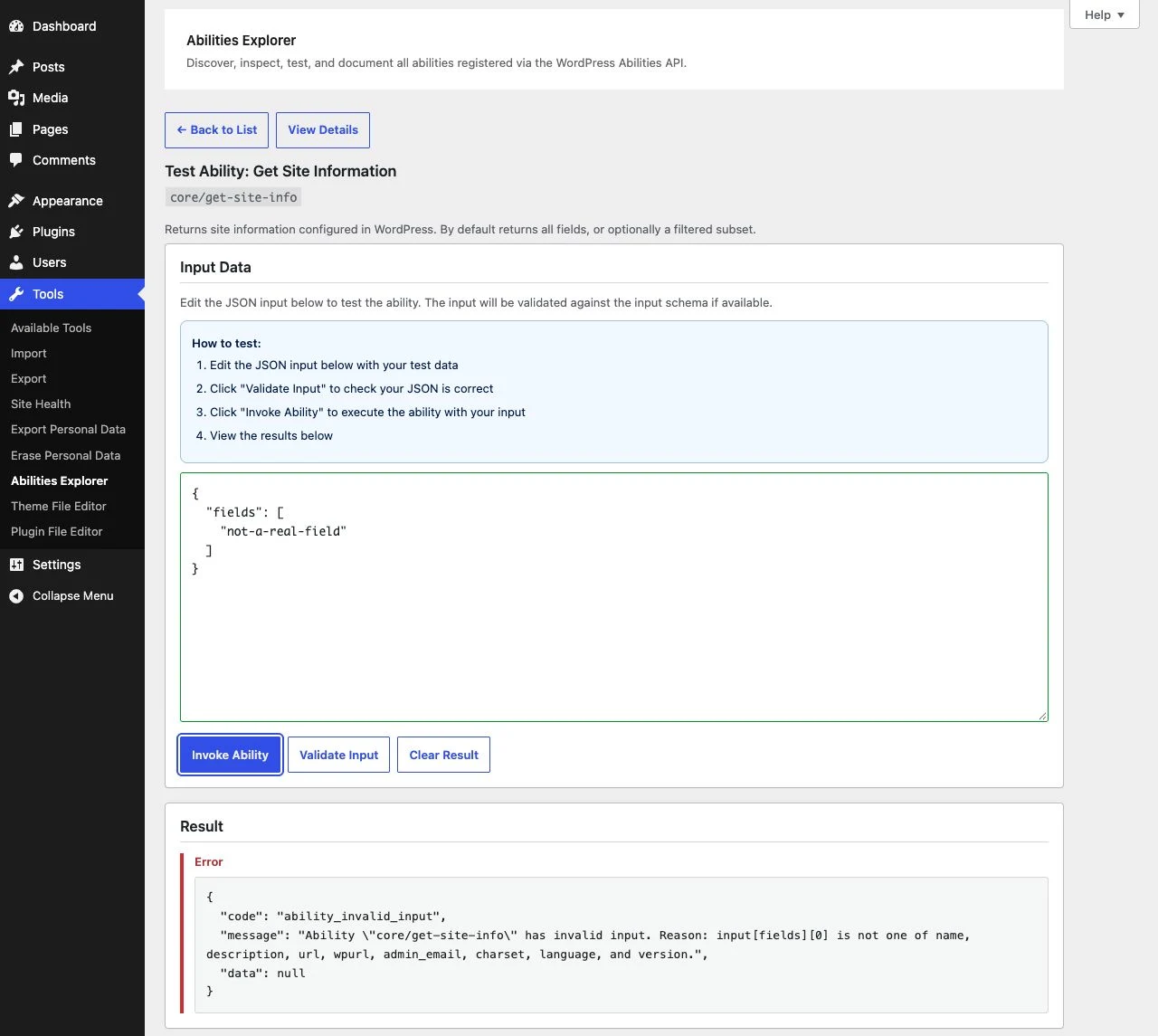
This screenshot demonstrates input validation, not a permission failure. Testing those boundaries separately matters: a rejected malformed request does not prove that an unauthorised user cannot submit a valid one.
Exposure is not permission
Three questions should remain separate: Is the operation reachable? Who is calling it? Is that caller allowed to perform this operation with these inputs?
For the core Abilities REST endpoints, WordPress requires authentication; execution also depends on the individual ability’s permission callback. Registered abilities are not automatically exposed through REST. The REST endpoint documentation explains discovery and execution under /wp-json/wp-abilities/v1/.
WordPress 7.1 added meta.public as a general external-exposure flag. Channel-specific settings can override it: for REST, an explicit show_in_rest value takes precedence. “Public” here describes exposure to clients; it does not mean anonymous execution. See the 7.1 exposure change before copying an older registration example.
As a concrete example, an ability that edits an article should check permission for that specific article—not merely whether someone is logged in. Allowlisting fields and checking record ownership or capabilities belongs in the implementation. Discoverability should never be treated as authorisation.
What happens when an ability executes
The execution implementation validates input, checks permissions, runs the operation, and then validates its output. This order has an important consequence: an output-validation error does not automatically undo changes that the operation has already made.
For custom write operations, plan failure handling before exposing them. If a process updates several records and fails halfway through, what is the recovery path? If a client retries after a timeout, can the request create duplicates?
Behaviour annotations such as read-only, destructive, or idempotent help integrations interpret an operation. They are not a sandbox that makes an unsafe callback safe. Review the actual implementation, including data handling and any outbound requests. The WP_Ability reference provides the underlying contract.
Connecting an external tool safely
For browser-based administration, WordPress uses its logged-in authentication context and REST nonce protections. External integrations can use mechanisms such as Application Passwords over HTTPS. Follow the REST authentication guidance rather than sending the main administrator password to a tool.
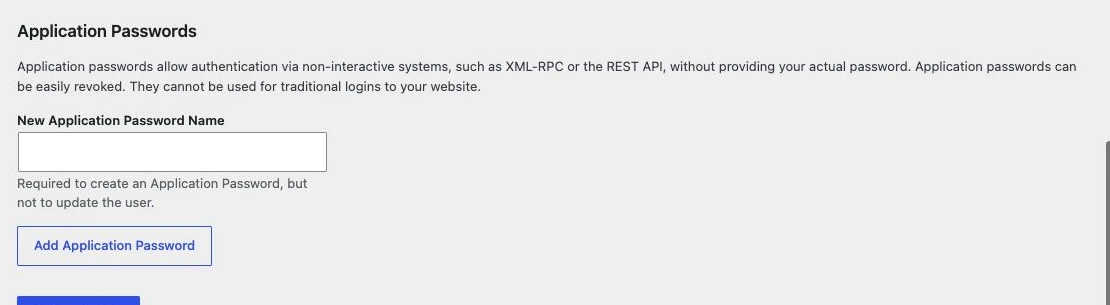
Application Passwords are managed from the user’s profile when available. Give each integration a recognisable name and a separate credential so access can be revoked independently. A name such as “Reporting tool” is a label, not a permission restriction: the credential does not automatically limit access to one ability. Use an account with only the capabilities the workflow genuinely needs. The Application Passwords documentation covers their management.
The screenshot shows where the credential would be created. I did not generate a credential or connect an external client during this walkthrough. Local HTTP addresses in the screenshots belong to the isolated demonstration; use HTTPS for external access to a real site. Never include generated secrets in screenshots, article examples, public repositories, or browser-delivered code.
Test the boundary, not only the successful response
Alongside the screenshots, I ran separate automated checks against the demonstration’s core/settings-get ability. The administrator request succeeded, subscriber and unauthenticated execution were denied, and invalid input was rejected. Anonymous REST discovery returned HTTP 401.
Those results verify this example’s boundaries in the tested installation—not the security of every installed plugin or future ability. Repeat a similar matrix for each operation you intend to expose:
- An authorised account receives only the intended result.
- A lower-privilege account cannot perform a restricted operation.
- Anonymous requests cannot reach protected information or actions.
- Invalid fields, unexpected record identifiers, and oversized requests are handled safely.
- Errors and retries do not leave unexplained changes or duplicate work.
- Revoking an integration credential prevents that integration from continuing to authenticate with it.
The last three checks need workflow-specific testing; this read-only demonstration did not exercise a write rollback, a retry sequence, or credential revocation.
Where this becomes useful in real work
Consider an editorial team reviewing image descriptions. A deliberately built integration could first retrieve a limited list of images, propose improved descriptions, and then apply only the changes an editor approves. Separating discovery, proposal, and application makes the workflow easier to inspect and control.
That is a potential custom workflow—not an image-editing feature supplied or tested by the Explorer setup above. It would need its own registered abilities, record-level permissions, validation, and review interface.
For an AI-assisted integration, treat text retrieved from articles, comments, and external pages as data, not instructions granting authority. A model’s interpretation must not override server-side permission checks. Keep operations narrow, minimise returned information, and decide which changes require human approval.
Request limits, useful audit records, backup and revision strategies, and safe retry behaviour need explicit ownership. Do not assume registering an ability automatically supplies all of them. Avoid logging credentials or unnecessary private data while recording enough context to investigate a change.
This is the approach I favour for practical AI automation in WordPress teams: make the workflow understandable before making it autonomous.
A shared foundation, with deliberate boundaries
The value of the Abilities API is not that it removes engineering decisions. It gives developers a common foundation on which to make those decisions more consistently.
Start with a limited read-only example. Inspect the actual registered definition, test both valid and invalid requests, and verify permissions independently. Add external access or write operations only when their purpose, credentials, approval process, and recovery behaviour are clear.
That is where open source is especially useful: we can inspect the implementation, learn from it, and adapt it—while remaining responsible for what we build on top.
Common questions
Do I need an AI model to use the Abilities API?
No. Abilities are registered WordPress operations. The read-only examples in this walkthrough ran without an AI provider or external assistant.
Does every plugin automatically support abilities?
No. A plugin must register operations or provide a documented integration. Enabling Explorer does not convert existing plugin functions into abilities.
Does public exposure allow anonymous execution?
No. Exposure and authorisation are different. Core Abilities REST endpoints require authentication, and execution is subject to the ability’s permission callback.
Does an Application Password restrict access to one ability?
Not automatically. Use a dedicated least-privilege account and review the integration’s actual permission boundaries. Give each integration a separate, revocable credential.